


Give your Apple smartwatch the off-on treatment or a soft reset by following these steps.
If your Apple Watch is experiencing an issue, restarting it or performing a forced restart is one of the simplest and most effective solutions.
In our experience, restarting the Apple Watch resolves most issues. If you suspect your Apple Watch requires a reboot, your first step should always be to either perform a simple off-and-on or a force restart in an attempt to unfreeze it.
In this guide, we’ll explain how to do both on devices running watchOS 26.
Just note that this isn’t the same as performing a hard reset on your Apple Watch, which should be the next step in your troubleshooting process.
SQUIRREL_PLAYLIST_10207703
How to turn the Apple Watch off
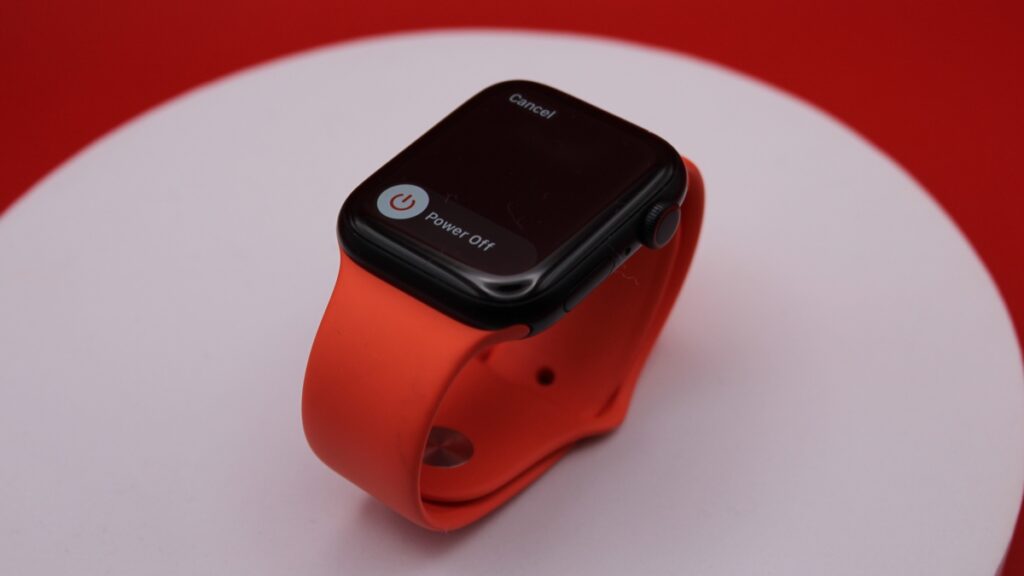
Turning off and restarting the Apple Watch changed with watchOS 10, and the method remains the same with the latest software, watchOS 26. Before you begin, ensure that your Apple Watch is not charging and is updated to the latest software version.
Follow these steps to turn the Apple Watch off:
- Press and hold the side button on the watch until the sliders appear, which usually takes a couple of seconds.
- Tap the power icon in the top-right corner.
- Drag the ‘Power Off’ slider from left to right – the Apple Watch will turn off.
Note: To turn the Apple Watch back on, press and hold the side button until the Apple logo appears.
Force restart the Apple Watch (soft reset)
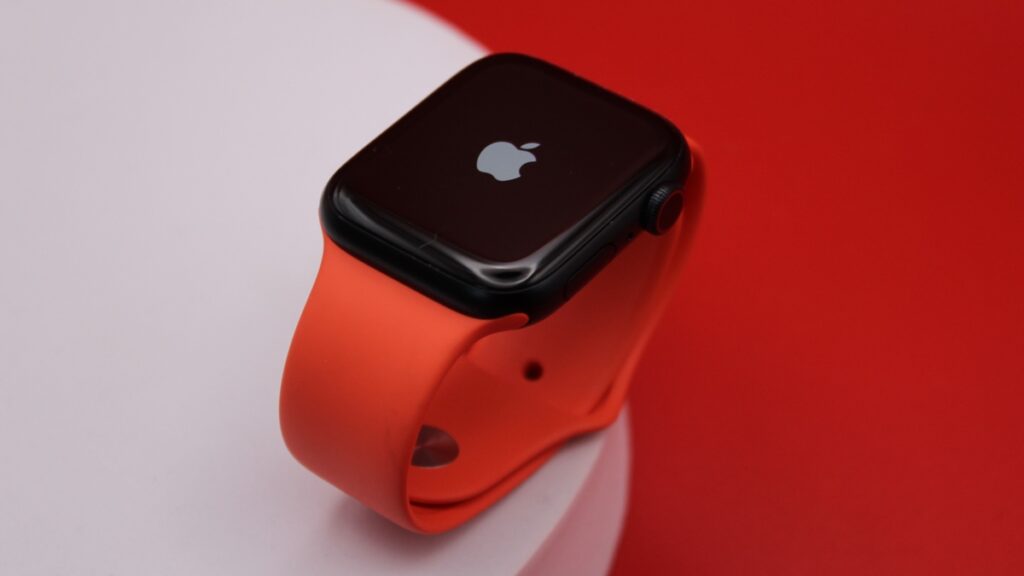
Forcing a restart of your Apple smartwatch isn’t advised in every scenario, such as when you’re updating your Apple Watch to the latest software.
However, it is a handy skill in your troubleshooting arsenal when the device fails to respond.
We recommend forcing your Apple Watch to restart if it’s frozen when turned on or won’t respond when you try to turn it on.
To force restart (soft reset) the Apple Watch:
- Hold the side button and Digital Crown for around 10 seconds, only releasing when the Apple logo appears (as shown above)