
Get more from running workouts with these hidden features.
The Apple Watch is an excellent companion for running and a reliable fitness watch. That’s why it’s dominated our best smartwatch guides since its launch in 2014, and only specialist running watches from the likes of Garmin can match its prowess.
Though the Apple Watch lacks deep training analysis, the brand has developed some excellent features over the last few iterations of watchOS. In this guide, we’ll cover five of the most useful things you may have missed.
- Read our full guide to the Apple Watch Workout app
- The best Apple Watch apps for runners
- Apple Watch Ultra 2: The ultra running test
Race yourself
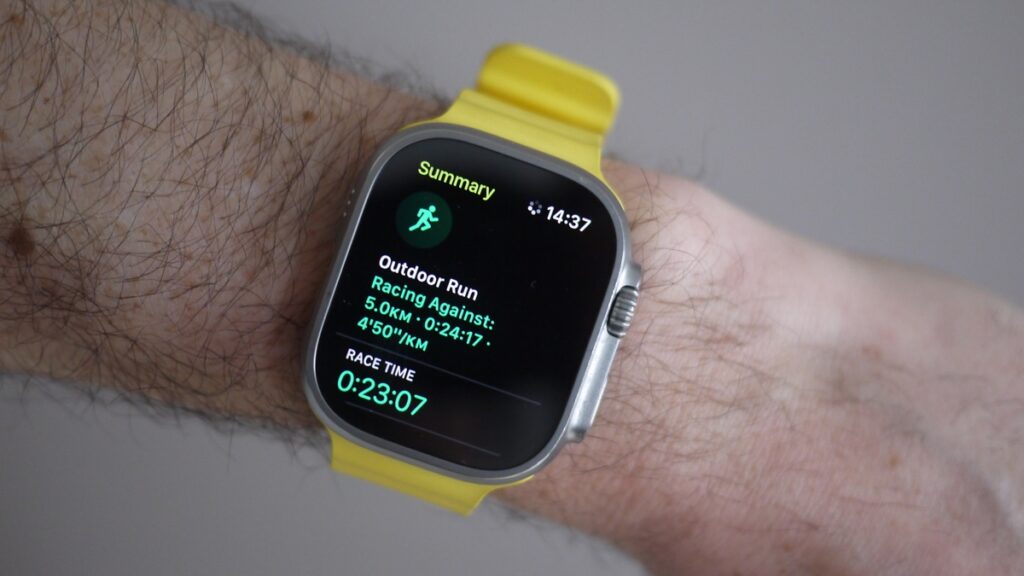
If you regularly run the same routes, there’s a nifty feature that can spice up your workouts. The Race Routes feature logs past routes and enables you to race yourself for extra motivation.
We used it for our local Parkrun, and it offered a whole new experience to race your PB in real time. And if you’re not feeling at your best, you can race against your last effort instead.
To use the feature, go to start an ‘Outdoor Run’ session in the Workout app, but hit the three little dots menu button before you begin.
Choose ‘Routes’, and then select one from the list.
When this feature launched, we didn’t see any Routes listed here on our first attempt, and we had to update our iPhone to the latest version before routes were displayed. If you’re seeing a blank list, start there. Also, ensure your Apple Watch is up to date.
Build a workout
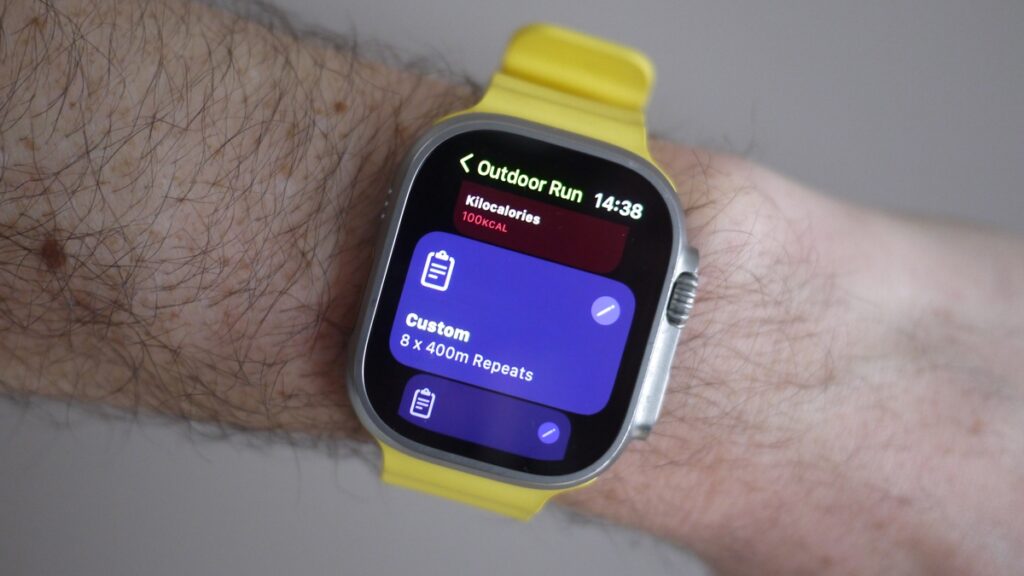
You can also build a workout from scratch entirely. Again, head to the Outdoor Run option in the Workout app and hit the menu.
From here, you can start building a workout by setting a target time, pace, distance, or calorie target, choosing a Custom > Goal-Based workout.
Pace-based goals are especially interesting, as a graphic shows how far behind or ahead you are of your pace goal. You can also build in interval timers and set warm-up and cool-down periods.
This means that you can have the Apple Watch guide you through specific sessions so that you can concentrate on the workout.
If you like building structured workouts on the Apple Watch, we recommend downloading and using Nike Run Club.
Auto-upload to Strava
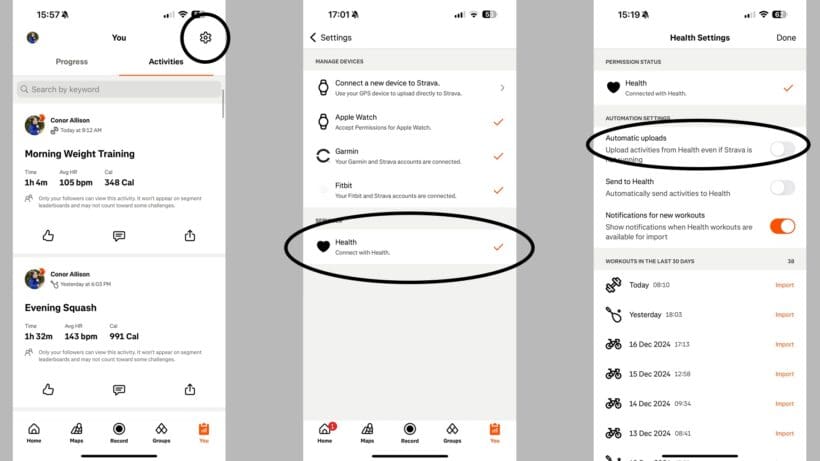
We used Strava to track our running workouts because we didn’t want to miss out on the social aspect and performance analysis.
As the Workout app improved, though, it became annoying not to be able to enjoy the richer interface that Apple’s experience provides.
A few years ago, you could partially fill this gap by manually uploading workouts to Strava from your Apple Watch. Now, this can all be done automatically mercifully.
We have a full guide to connecting Apple Watch and Strava, so we won’t reproduce that here. But, simply, toggling on Automatic Uploads and going for a run should sort it.
Get rid of the countdown with Precision Start
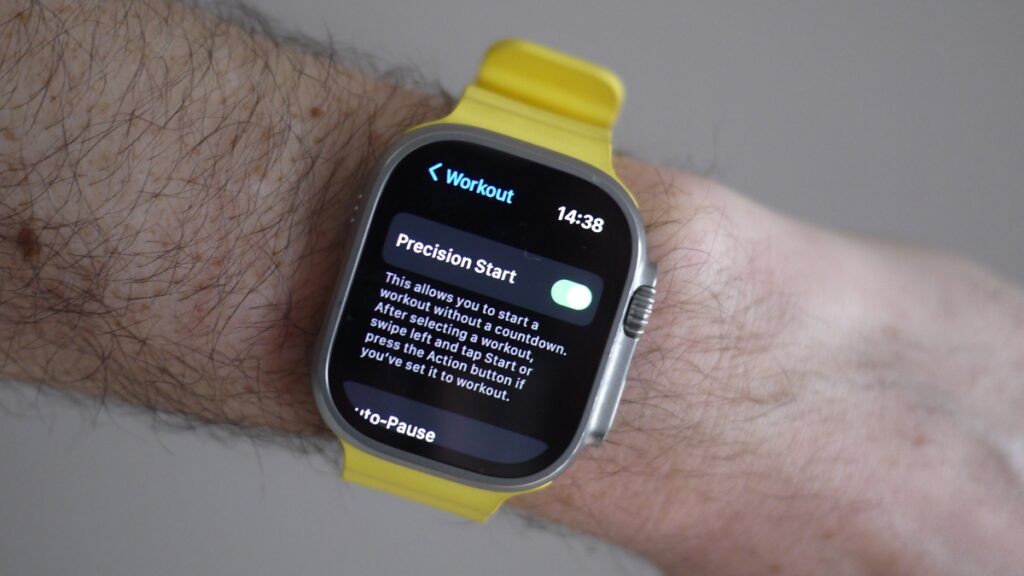
A feature exclusive to the Apple Watch Ultra 1 and Ultra 2 only (weirdly), Precision Start enables you to have the Workout app ready to go on the start line of races – and push to begin.
When you fire up the Apple Watch Workout app, the tracking begins immediately by default. You get a 3, 2, 1 countdown, and off you go.
However, it’s not only fiddly when you’re in the funnel of a big race but also presents a challenge for accuracy. That’s because the Apple Watch doesn’t spend time finding a satellite lock like every other GPS sports watch; instead, it uses other signals to plot a location before it locks on.
This system is fine on training plods, but you’ll want the watch locked and ready to go if you’re on the start line of your big race.
Go to Settings > Workout > Precision Start to turn the feature on. You won’t go back.
We hope this eventually comes to the Series 10 and other models, as it’s useful for any runner.
View live running power
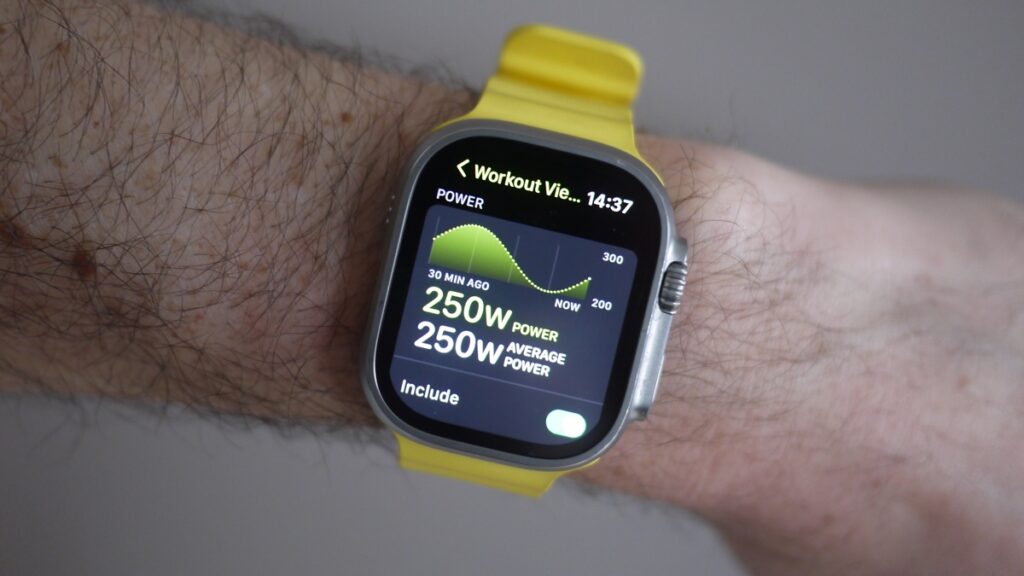
In more recent annual watchOS refreshes, Apple has added many run-focused metrics such as vertical oscillation, cadence, and, more recently, running power.
We’ve written about running power extensively, and it’s effectively a metric of running effort, rather than heart rate exertion. When used correctly, it can effectively ensure you don’t burn out on races.
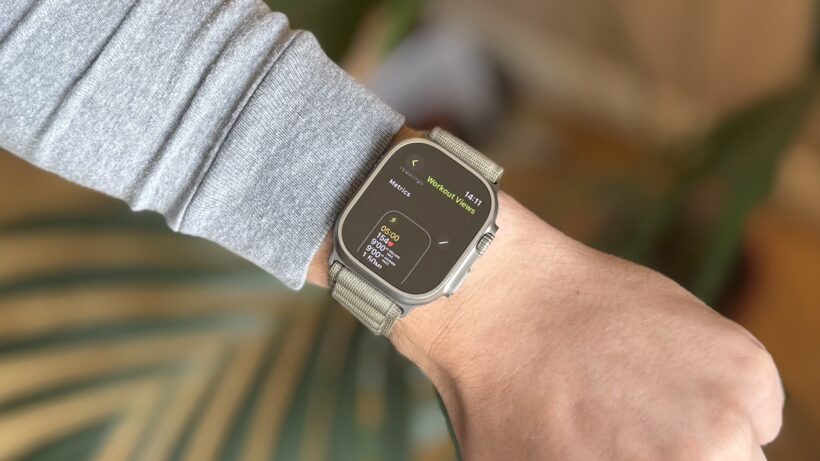
The issue is that it doesn’t appear by default in the Apple Watch Workout app, but you can have it displayed as a live metric. This is an excellent opportunity to learn how to edit and adjust the metrics displayed during a workout.
- Hovering over ‘Outdoor Run’ in the Workout app, tap the three-dot icon.
- Scroll down to ‘Preferences’.
- Select ‘Workout Views’.
- Under the ‘Power’ data screen, tap the ‘Include’ switch.
- The next time you track in this mode, you can swipe through the screens to a live look at your running power.